2012년 3월 11일 일요일

31 Modern HTML5 Demos That Can Beat Flash


31 Modern and Cool HTML5 Demos

Ball Pool
It is an awesome experiment, where you can drag multi-colored balls and also create some new ones.
Ball Pool
Bomomo
In this experiment by using some small balls you may create 15+ different kinds of shapes, circles, and forms.
Bomomo
The Wilderness Down Town
Nice HTML5 Experiment, with a great "flash-like" look, originally built for Google Chrome browsers.
The Wilderness Down Town
Spread
Great multi-colored shapes-creator built with Flash Canvas. FlashCanvas is a JavaScript library which adds the HTML5 Canvas support to Internet Explorer. It renders shapes and images via Flash drawing API, and in many cases, runs faster than other similar libraries which use VML or Silverlight.
Spread
Fireworks
Fireworks creator, build with javascript, with the gravity changing ability. Works great with Chrome.
Fireworks
Sandbox HTML5 Experiment
Sandbox is a red-particles shooter that "attacks" some black boxes that fall from the "sky".
Sandbox HTML5 Experiment
HTML 5 Video Distruction
Block based destruction of different HTML5 video, best viewed in webkit-based browsers.
HTML 5 Video Distruction
9 Elements Experiment
Canvas, is an HTML5 experiment built by 9 Elements. It moves multi-colored particles after the mouse movements.
9 Elements Experiment
Parcycle
Parcycle is a Mr. Speaker experiment. It creates a "fire-like" substance that is moving after the mouse. It has a lot of configuration options, like: Speed, Sharpness, Size and Number of Particles.
Parcycle
HTML 5 Tiler 3D
Tiler 3D aims to slide show an unlimited number of equal sized images in a grid of 3d rotating tiles.
HTML 5 Tiler 3D
Sinuous
Sinous is a simple and interesting HTML5 Game, where you control a blue ball and should avoid some other red circles that "attack" you.
Sinuous
Magnetic HTML5 Experiment
Magnetic is an HTML5 experiment, created by Hakim. The particles orbit around magnets which can be dragged around.
Magnetic HTML5 Experiment
Key Light
Key Light is an experiment where a playhead travels between keys, which resonate in sound depending on where they are placed in the room.
Key Light
Anevent Apart HTML5 Experiment
ColorBlendy is an HTML5 experiment useful for designers. It blends colors with different modes like: multiply, overlay, dodge. It also shows the hex value of the indicated color.
Anevent Apart HTML5 Experiment
Anevent Apart HTML5 Experiment 2
The HTML5 Experiment created by Anevent Apart show some beautiful "Night Lights" created on an earth shape.
Anevent Apart HTML5 Experiment 2
Cloth
Cloth is an HTML5 Experiment built by Andrew Hoyer. It moves points and lines by a simple dragging.
Cloth
Defend Yourself
Defend Yourself is an interesting game built with HTML5. You own one gun, which shoots bubbles in different brown circles.
Defend Yourself
3D Chess
3D Chess by nihilogic is a work-in-progress 3D Javascript chess game, rendered using the canvas element.
3D Chess
Canvas Nebula
Canvas Nebula is a simple demonstration of a nebula effect using the HTML5 Canvas element. The effect is created by layering three images, derived from a larger single bitmap source, that fade in and out while increasing in scale.
Canvas Nebula
Monster
Monster is a custom 3 dimensional red shape. It was created by Dean McNamee with the Pre3d tool.
Monster
Drag Anything
Grab anything and drag it in to the drop zone. There is included some text below, but you can drag URLs, bookmarklets, files, anything.
Drag Anything
HTML5 Landscape
Modern 3D landscape built on HTML5 Canvas. Originally created by Seb Lee-Delisle.
HTML5 Landscape
Javascript Particle Engine
JaVortex is a gravitational attraction particle engine n-body simulator in Javascript.
Javascript Particle Engine
Canvas Photo
Canvas Photo is a HTML5 experiment that allows you to import images on a wooden texture and to modify their position as you wish, then export the result to a .PNG or .JPG image.
Canvas Photo
Projekktor HTML5 Experiment
Projekktor is a free HTML5 based video- and audio- player written in Javascript. It solves cross browser and compatibility issues, offers flash fallback for ancient browsers, adds some eye candy and provides powerful non standard features.
Projekktor HTML5 Experiment
Video for Everybody
Video for Everybody is simply a chunk of HTML code that embeds a video into a website using the HTML5 element, falling back to Flash automatically, without the use of JavaScript or browser sniffing.
Video for Everybody
Where am I?
Where I Am is a modern HTML5 application that will plot your approximate location and display it on a map.
Where am I?
Hakim HTML5 Experiment
Core is a modern and interesting HTML5 game built by Hakim. The main idea of the game is to stop the red dots that attack you.
Hakim HTML5 Experiment
Bio Lab
Biolab Disaster is a game, purely made in HTML5 and Javascript. Working best with Chrome and Safari.
Bio Lab
Entanglement
Entanglement is an HTML5 game, done by Gopher Wood Studios and is a part of the Chrome Experiments.
Entanglement
Google Gravity
Google Gravity is a modern project by Mr. Doob. While accessing the web page, all of the elements fall too the footer of the webpage, remaining active.
Google Gravity


HTML Sites


1. General : http://www.w3.org/TR/html5/


2. Web Publisher : http://dev.w3.org/html5/spec-author-view/


3. Rich UI Developer : http://dev.w3.org/html5/2dcontext/


4. Web Application Developer : 3. Rich UI Developer : http://dev.w3.org/html5/eventsource/


2012년 3월 4일 일요일

Dependency Properties


Dependency Properties

Introduction
Value resolution strategy
The magic behind it
How to create a DepdencyProperty
Readonly DependencyProperties
Attached DependencyProperties
Listen to dependency property changes
How to clear a local value

Introduction

When you begin to develop appliations with WPF, you will soon stumble across DependencyProperties. They look quite similar to normal .NET properties, but the concept behind is much more complex and powerful.


The main difference is, that the value of a normal .NET property is read directly from a private member in your class, whereas the value of a DependencyProperty is resolved dynamically when calling the GetValue() method that is inherited from DependencyObject.
When you set a value of a dependency property it is not stored in a field of your object, but in a dictionary of keys and values provided by the base class DependencyObject. The key of an entry is the name of the property and the value is the value you want to set.
The advantages of dependency properties are
  • Reduced memory footprint
    It's a huge dissipation to store a field for each property when you think that over 90% of the properties of a UI control typically stay at its initial values. Dependency properties solve these problems by only store modified properties in the instance. The default values are stored once within the dependency property.
  • Value inheritance
    When you access a dependency property the value is resolved by using a value resolution strategy. If no local value is set, the dependency property navigates up the logical tree until it finds a value. When you set the FontSize on the root element it applies to all textblocks below except you override the value.

  • Change notification
    Dependency properties have a built-in change notification mechanism. By registering a callback in the property metadata you get notified, when the value of the property has been changed. This is also used by the databinding.

Value resolution strategy

Every time you access a dependency property, it internally resolves the value by following the precedence from high to low. It checks if a local value is available, if not if a custom style trigger is active,... and continues until it founds a value. At last the default value is always available.

The magic behind it

Each WPF control registers a set of DependencyProperties to the static DependencyProperty class. Each of them consists of a key - that must be unique per type - and a metadata that contain callbacks and a default value.
All types that want to use DependencyProperties must derive from DependencyObject. This baseclass defines a key, value dictionary that contains local values of dependency properties. The key of an entry is the key defined with the dependency property.
When you access a dependency property over its .NET property wrapper, it internally calls GetValue(DependencyProperty) to access the value. This method resolves the value by using a value resolution strategy that is explained in detail below. If a local value is available, it reads it directly from the dictionary. If no value is set if goes up the logical tree and searches for an inherited value. If no value is found it takes the default value defined in the property metadata. This sequence is a bit simplified, but it shows the main concept.

How to create a DependencyProperty

To create a DependencyProperty, add a static field of type DepdencyProperty to your type and call DependencyProperty.Register() to create an instance of a dependency property. The name of the DependendyProperty must always end with ...Property. This is a naming convention in WPF.
To make it accessable as a normal .NET property you need to add a property wrapper. This wrapper does nothing else than internally getting and setting the value by using the GetValue() and SetValue() Methods inherited from DependencyObject and passing the DependencyProperty as key.
Important: Do not add any logic to these properties, because they are only called when you set the property from code. If you set the property from XAML the SetValue() method is called directly.
If you are using Visual Studio, you can type propdp and hit 2x tab to create a dependency property.
 
// Dependency Property
public static readonly DependencyProperty CurrentTimeProperty = 
     DependencyProperty.Register( "CurrentTime", typeof(DateTime),
     typeof(MyClockControl), new FrameworkPropertyMetadata(DateTime.Now));
 
// .NET Property wrapper
public DateTime CurrentTime
{
    get { return (DateTime)GetValue(CurrentTimeProperty); }
    set { SetValue(CurrentTimeProperty, value); }
}
 
 
Each DependencyProperty provides callbacks for change notification, value coercion and validation. These callbacks are registered on the dependency property.
 
new FrameworkPropertyMetadata( DateTime.Now, 
                       OnCurrentTimePropertyChanged, 
                       OnCoerceCurrentTimeProperty ),
                       OnValidateCurrentTimeProperty );


Value Changed Callback

The change notification callback is a static method, that is called everytime when the value of the TimeProperty changes. The new value is passed in the EventArgs, the object on which the value changed is passed as the source.
 
private static void OnCurrentTimePropertyChanged(DependencyObject source, 
        DependencyPropertyChangedEventArgs e)
{
    MyClockControl control = source as MyClockControl;
    DateTime time = (DateTime)e.NewValue;
    // Put some update logic here...
}


Coerce Value Callback

The coerce callback allows you to adjust the value if its outside the boundaries without throwing an exception. A good example is a progress bar with a Value set below the Minimum or above the Maximum. In this case we can coerce the value within the allowed boundaries. In the following example we limit the time to be in the past.
 
private static object OnCoerceTimeProperty( DependencyObject sender, object data )
{
    if ((DateTime)data > DateTime.Now )
    {
        data = DateTime.Now;
    }
    return data;
}


Validation Callback

In the validate callback you check if the set value is valid. If you return false, an ArgumentException will be thrown. In our example demand, that the data is an instance of a DateTime.
 
private static bool OnValidateTimeProperty(object data)
{
    return data is DateTime;
}


Readonly DependencyProperties

Some dependency property of WPF controls are readonly. They are often used to report the state of a control, like the IsMouseOver property. Is does not make sense to provide a setter for this value.
Maybe you ask yourself, why not just use a normal .NET property? One important reason is that you cannot set triggers on normal .NET propeties.
Creating a read only property is similar to creating a regular DependencyProperty. Instead of calling DependencyProperty.Register() you call DependencyProperty.RegisterReadonly(). This returns you a DependencyPropertyKey. This key should be stored in a private or protected static readonly field of your class. The key gives you access to set the value from within your class and use it like a normal dependency property.
Second thing to do is registering a public dependency property that is assigned to DependencyPropertyKey.DependencyProperty. This property is the readonly property that can be accessed from external.

 
// Register the private key to set the value
private static readonly DependencyPropertyKey IsMouseOverPropertyKey = 
      DependencyProperty.RegisterReadOnly("IsMouseOver", 
      typeof(bool), typeof(MyClass), 
      new FrameworkPropertyMetadata(false));
 
// Register the public property to get the value
public static readonly DependencyProperty IsMouseoverProperty = 
      IsMouseOverPropertyKey.DependencyProperty;    
 
// .NET Property wrapper
public int IsMouseOver
{
   get { return (bool)GetValue(IsMouseoverProperty); }
   private set { SetValue(IsMouseOverPropertyKey, value); }
}


Attached Properties

Attached properties are a special kind of DependencyProperties. They allow you to attach a value to an object that does not know anything about this value.
A good example for this concept are layout panels. Each layout panel needs different data to align its child elements. The Canvas needs Top and Left, The DockPanel needs Dock, etc. Since you can write your own layout panel, the list is infinite. So you see, it's not possible to have all those properties on all WPF controls.
The solution are attached properties. They are defined by the control that needs the data from another control in a specific context. For example an element that is aligned by a parent layout panel.
To set the value of an attached property, add an attribute in XAML with a prefix of the element that provides the attached property. To set the the Canvas.Top and Canvas.Left property of a button aligned within a Canvas panel, you write it like this:
<Canvas>
    <Button Canvas.Top="20" Canvas.Left="20" Content="Click me!"/>
</Canvas>
 
 
public static readonly DependencyProperty TopProperty =
    DependencyProperty.RegisterAttached("Top", 
    typeof(double), typeof(Canvas),
    new FrameworkPropertyMetadata(0d,
        FrameworkPropertyMetadataOptions.Inherits));
 
public static void SetTop(UIElement element, double value)
{
    element.SetValue(TopProperty, value);
}
 
public static double GetTop(UIElement element)
{
    return (double)element.GetValue(TopProperty);
}


Listen to dependency property changes

If you want to listen to changes of a dependency property, you can subclass the type that defines the property and override the property metadata and pass an PropertyChangedCallback. But an much easier way is to get the DependencyPropertyDescriptor and hookup a callback by calling AddValueChanged()
 
DependencyPropertyDescriptor textDescr = DependencyPropertyDescriptor.
    FromProperty(TextBox.TextProperty, typeof(TextBox));
 
if (textDescr!= null)
{
    textDescr.AddValueChanged(myTextBox, delegate
    {
        // Add your propery changed logic here...
    });
} 


How to clear a local value

Because null is also a valid local value, there is the constant DependencyProperty.UnsetValue that describes an unset value.

What's new in XAML of .NET 4.0


Easy Object References with {x:Reference}
Built-in Types
Generics in XAML with x:TypeArguments
Support for Arbitrary Dictionary Keys
Use of Non-Default Constructors with x:Arguments
Use of Static Factory Methods with x:FactoryMethod


With .NET 4.0 Microsoft will bring up a improved version of XAML. This arcitle shows you the language enhancements they made.

Easy Object References with {x:Reference}

If you want to create an object reference today you need to do a databinding and declare the source with an ElementName. In XAML 2009 you can use the new {x:Reference} markup extension
 
<!-- XAML 2006 -->
<Label Target="{Binding ElementName=firstName}">FirstName</Label>
<TextBox x:Name="firstName" />
 
<!-- XAML 2009 -->
<Label Target="{x:Reference firstName}">FirstName</Label>
<TextBox x:Name="firstName" />


Built-in Types

If you want to add objects of simple types like string or double to a resource dictionary today you need to map the needed clr-namespaces to an XML namespaces. In XAML 2009 we a lot of simple types that are included in the XAML language.
 
<!-- XAML 2006 -->
<sys:String xmlns:sys="clr-namespace:System;assembly=mscorlib >Test</sys:String>
 
<!-- XAML 2009 -->
<x:String>Test</x:String>
 
 
The following types are included into the XAML language:
  • <x:Object/>
  • <x:Boolean/>
  • <x:Char/>
  • <x:String/>
  • <x:Decimal/>
  • <x:Single/>
  • <x:Double/>
  • <x:Int16/>
  • <x:Int32/>
  • <x:Int64/>
  • <x:TimeSpan/>
  • <x:Uri/>
  • <x:Byte/>
  • <x:Array/>
  • <x:List/>
  • <x:Dictionary/>

Generics in XAML with x:TypeArguments

If you want to use an ObservableCollection<Employee> in XAML you need to create a type that derives from ObservableCollection because you cannot declare it in XAML. With XAML 2009 you can use the x:TypeArguments attribute to define the type of a generic type.
 
<!-- XAML 2006 -->
class EmployeeCollection : ObservableCollection<Employee>
{
}
 
<l:EmployeeCollection>
    <l:Employee FirstName="John" Name="Doe" />
    <l:Employee FirstName="Tim" Name="Smith" />
</lEmployeeCollection>
 
<!-- XAML 2009 -->
<ObservableCollection x:TypeArguments="Employee">
    <l:Employee FirstName="John" Name="Doe" />
    <l:Employee FirstName="Tim" Name="Smith" />
</ObservableCollection />


Support for Arbitrary Dictionary Keys

In XAML 2006 all explicit x:Key value were threated as strings. In XAML 2009 you can define any type of key you like by writing the key in ElementSyntax.
 
<!-- XAML 2006 -->
<StreamGeometry x:Key="CheckGeometry">M 0 0 L 12 8 l 9 12 z</StreamGeometry>
 
<!-- XAML 2009 -->
<StreamGeometry>M 0 0 L 12 8 l 9 12 z
    <x:Key><x:Double>10.0</x:Double></x:Key>
</StreamGeometry>


Use of Non-Default Constructors with x:Arguments

In XAML 2006 objects must have a public default constructor to use them. In XAML 2009 you can pass constructor arguments by using the x:Arguments syntax.
 
<!-- XAML 2006 -->
<DateTime>00:00:00.0000100</DateTime>
 
<!-- XAML 2009 -->
<DateTime>
    <x:Arguments>
        <x:Int64>100</x:Int64>
    </x:Arguments>
</DateTime>


Use of Static Factory Methods with x:FactoryMethod

When you have a type that has no public constructor but a static factory method you had to create that type in code in XAML 2006. With XAML 2009 you can use the x:FactoryMethodx:Arguments attribute to pass the argument values.
 
<!-- XAML 2006 -->
Guid id = Guid.NewGuid();
 
<!-- XAML 2009 -->
<Guid x:FactoryMethod="Guid.NewGuid" />


User Experience Design Process


User Experience becomes a Key Success Factor

In the past, we focused mainly on building products that fulfilled the functional requirements of the user. User experience was often considered late in the development process. But today the customer demands more than just a working product. Providing the right features is still the prerequisite for a good product, but to turn it into something extraordinary you need to provide a good user experience!
Providing a rich user experience is not a thing of fortune. It needs to be planed, designed and integrated into the development of a product. Designing a rich user experience is not only about make up your user interface by some graphics and gradients - its a much broader concept. Its about creating an emotional connection between the user and your software. It makes the user feel good and so he likes to continue using the software.

New Tools for Designers

Microsoft recognized, give development teams the power to create rich user experiences it needs a lot more graphical tool support than VisualStudio can provide today. So they decided to create a new tool suite - made for designers.
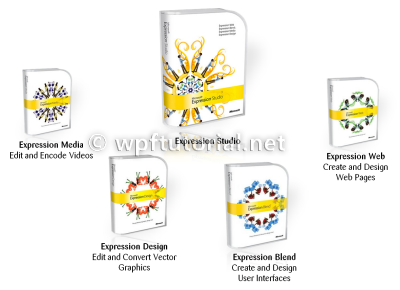
This tool suite is called Microsoft Expression. It consists of the four products:
  • Expression Blend is built to create user interfaces in WPF and Silverlight. It builds the bridge between designer and developers. It can open VisualStudio solutions
  • Expression Design is a leightweight version of Adobe Illustrator to create and edit vector graphics.
  • Expression Media is built to encode, cut and enrich video files and optimize them for silverlight streaming
  • Expression Web is Microsoft next generation of HTML and Javascript editor. Its the replacement for Frontpage.
Together they are a powerful package. The following illustration shows a sample workflow of integrating a vector image that is created by a graphics designer in Adobe Illustrator into a WPF project that is part of a VisualStudio solution.

Development Workflow of a WPF Project

Developing a WPF application with a rich user experience requires a lot more skills than just a requirements analyst that defines a list of use cases and developer that implements the software. You have to find out what the user really needs. This can be done by following a user centered approach.

1. Elicit Requirements

Like in any kind of software projects its important to know and focus the target of your development. You should talk to stakeholders and users to find out the real needs. These needs should be refined to features and expressed in use cases (abstract) or user scenarios (illustrative). Priorize the tasks by risk and importance and work iteratively. This work is done by the role of the requirements engineer.

2. Create and Validate UI Prototype

Creating a user interface prototype is an important step to share ideas between users and engineers to create a common understanding of the interaction design. This task is typically done by an interaction designer. It's helpful to only sketch the user interface in a rough way to prevent early discussions about design details. There are multiple techniques and tools to do this. Some of them are:
  • Paper prototype
    Use paper and pencil to draw rough sketches of your user interface. No tools and infrastructure is needed. Everyone can just scribble thier ideas on the paper.
  • Wireframes
    Wireframes are often used to sketch the layout of a page. It's called wireframes because you just draw the outlines of controls and images. This can be done with tools like PowerPoint or Visio
  • Expression Blend 3 - Sketch Flow Sketch flow is a new cool feature to create interactive prototypes directly in WPF. You can use the integrated "wiggly style" to make it look sketchy. The prototype can be run in a standalone player that has an integrated feedback mechanism.
  • Interactive Prototype The most expensive and real approach is to create an (reusable) interactive prototype that works as the real application but with dummy data.
It is strongly recommended to test your UI prototype on real users. This helps you to find out and address design problems early in the development process. The following techniques are very popular to evaluate UI prototypes:
  • Walktrough
    A walktrough is usually done early in a project with wireframes or paper prototypes. The user gets a task to solve and he controlls the prototype by touching on the paper. The test leader than presents a new paper showing the state after the interaction.
  • Usability Lab
    To do a usability lab, you need a computer with a screen capture software and a camera. The proband gets an task to do and the requirements and interaction engineer watch him doing this. They should not talk to him to find out where he gets stuck and why.

3. Implement Business Logic and Raw User Interface

4. Integrate Graphical Design

5. Test software

Roles

Buliding a modern user interface with a rich user experience requires additional skills from your development team. These skills are described as roles that can be distributed among peoples in your development team.
  • Developer
    The developer is responsible to implement the functionality of the application. He creates the data model, implements the business logic and wires all up to a simple view.
  • Graphical Designer
    The graphical designer is responsible to create a graphical concept and build graphical assets like icons,logos, 3D models or color schemes. If the graphical designer is familiar with Microsoft Expression tools he directly creates styles and control templates.
  • Interaction Designer
    The interaction designer is responsible for the content and the flow of a user interface. He creates wireframes or UI sketches to share its ideas with the team or customer. He should validate his work by doing walktroughs or storyboards.
  • Integrator
    The integrator is the artist between the designer and the developer world. He takes the assets of the graphical designer and integrates them into the raw user interface of the developer. This role needs a rare set of skills and so it's often hard to find the right person for it.

WPF Tutorial : Beginning


Table of Contents

Introduction

After working for more than 6 months in WPF, it is time to start writing on the basics of WPF. I have already put up a few articles on this topic, which basically deal with some specific problems. Now it is time to go beyond that, and to let you understand how / why WPF came to us as a revolution to UI development.
As this is an article for beginners to intermediate level programmers, I will try to give as many basic examples as I can. I will also put a few reference links to each article of the series to make you navigate the other articles easily.

Windows Presentation Foundation


As the name says all, WPF is actually a new framework introduced with .NET framework 3.0 which actually puts forward a new set of classes and assemblies which allow us to write programs more efficiently and flexibly. It uses Direct3D rendering which employs graphics cards to render the output on the screen. Thus the drawing in the form will be smooth and also there is a chance to utilize the hardware capabilities installed in your machine. In case of traditional GDI forms application, it is not possible to use advanced graphics capabilities and hence Windows Forms application will always be inefficient in comparison to WPF. Another important thing that I must address in this regard, GDI Windows forms application uses Operating system controls to build its application. Thus it is basically very hard to customize them in your own application. WPF controls are actually drawn over the screen, and hence you can customize controls totally and modify their behavior when required.

Features of WPF

WPF comes with lots of advantages. Let me introduce a few of its features:
  • Device Independent Pixel (DPI)
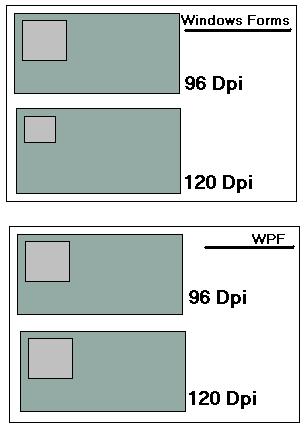
    WPF introduces Device Independent DPI Settings for the applications built with it. For a window, it is very important to calculate how many Dots Per inch(DPI) the screen could draw. This is generally dependent on the hardware device and operating system in which the application runs and also how the DPI settings is applied on the Device. Any user can easily customize these settings and hence make the application look horrible. Windows forms application uses pixel based approach so with changing DPI settings, each control will change its size and look.
    WPF addresses this issue and makes it independent of DPI settings of the computer. Let's look at how it is possible:

    Let's say you have drawn a box, just like the one in the figure, which is 1 inch long in 96 dpi screen. Now if you see the same application in 120 dpi settings, the box will appear smaller. This is because the things that we see on the screen are totally dependent on dpi settings.
    In case of WPF, this is modified to density based approach. That means when the density of pixel is modified, the elements will adjust them accordingly and hence the pixel of WPF application is Device Independent Pixel. As you can see in the figure, the size of the control remains the same in case of WPF application and it takes more pixels in case of 120 DPI application to adjust the size properly.
  • Built-In Support for Graphics and Animation :
    WPF applications as being rendered within DirectX environment, it has major support of graphics and animation capabilities. A separate set of classes are there which specifically deal with animation effects and graphics. The graphics that you draw over the screen is also Vector based and are object oriented. That means, when you draw a rectangle in WPF application, you can easily remove that from the screen as rectangle is actually an object which you always have a hold on. In a traditional Windows based application, once you draw a rectangle, you can't select that individually. Thus programming approach in case of WPF is completely different and more sophisticated than traditional graphics approach. We will discuss graphics and animation in more detail in a later section of the article.
  • Redefine Styles and Control Templates
    In addition to graphics and animation capabilities, WPF also comes with a huge flexibility to define the styles andControlTemplates. Style based technique as you might come across with CSS is a set of definitions which defines how the controls will look like when it is rendered on the screen. In case of traditional windows applications, styles are tightly coupled with each control, so that you need to define color, style, etc. for each individual control to make it look different. In case of WPF, Styles are completely separated from theUIElement. Once you define a style, you can change the look and feel of any control by just putting the style on the element.
    Most of the UIElements that we generally deal with are actually made using more than one individual elements. WPF introduces a new concept of Templates, which you might use to redefine the whole control itself. Say for instance, you have a CheckBox, which has a Rectangle in it and a ContentPresenter (one where the caption of the TextBox appears). Thus you can redefine your checkbox and put aToggleButton inside it, so that the check will appear on the ToggleButton rather than on the Rectangle. This is very interesting. We will look into more detail on Styles and ControlTemplates in later section of the article.
  • Resource based Approach for every control
    Another important feature of WPF is Resource based approach. In case of traditional windows applications, defining styles is very hectic. So if you have 1000 buttons, and you want to apply Color to each Buttons to Gold, you need to create 1000 objects of Color and assign each to one individual elements. Thus it makes it very resource hungry.
    In WPF, you can store styles, controls, animations, and even any object as resource. Thus each resource will be declared once when the form loads itself, and you may associate them to the controls. You can maintain a full hierarchy of styles in a separate file called ResourceDictionary, from which styles for the whole application will be applied. Thus WPF application could be themed very easily.
  • New Property System & Binding Capabilities
    In the next step, I must introduce the new property system introduced with WPF. Every element of WPF defines a large number of dependency properties. The dependency properties have strong capabilities than the normal properties. Thus when I define our new property, we can easily register my own property to any object I wish to. It will add up to the same observer that is associated to every object. As every element is derived fromDependencyObject in its object hierarchy, each of them contains the Dependency Observer. Once you register a variable as Dependency property, it will create a room on the observer associated with that control and set the value there. We will discuss this in more detail in later sections of the series.

What is XAML?

According to the definition, XAML is an XML based declarative markup language for specifying and setting the characteristics of classes. In other words, XAML is a language used by WPF, Silverlight or any other application which can declare classes by itself. So, you can declare a variable, define the properties of any class and directly use it in your application. The XAML parser will automatically parse and create the actual object while it renders the application.
XAML is generally used to define layout of UI, its elements and objects for static and visual aspect. We cannot define flow of a program using XAML. So even though there are large capabilities of XAML, it is actually not a programming language, rather it is used to design UI of the application. Thus XAML employs other programming languages like C#, VB.NET, etc. to define the logic in code behind.
ExpressionBuilder is the best tool to generate XAML.

WPF Architecture

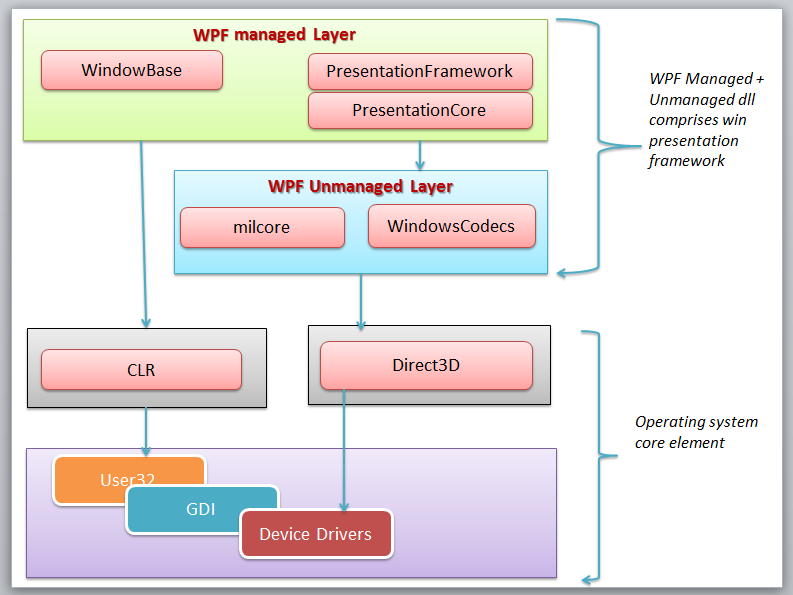
For every new technology, it is very essential to have a clear idea about its architecture. So before beginning your application, you must grab a few concepts. If you would not like to know WPF in detail, please skip this section. As mentioned earlier, WPF is actually a set of assemblies that build up the entire framework. These assemblies can be categorized as:
  • Managed Layer
  • UnManaged Layer
  • Core API
Managed Layer: Managed layer of WPF is built using a number of assemblies. These assemblies build up the WPF framework, communicate with lower level unmanaged API to render its content. The few assemblies that comprise the WPF framework are:
  1. PresentationFramework.dll: Creates the top level elements like layout panels, controls, windows, styles, etc.
  2. PresentationCore.dll: It holds base types such as UIElement, Visual from which all shapes and controls are Derived in PresentationFramework.dll.
  3. WindowsBase.dll: They hold even more basic elements which are capable of being used outside the WPF environment like Dispatcher object, Dependency Objects. I will discuss each of them later.
Unmanaged Layer (milcore.dll): The unmanaged layer of WPF is called milcore or Media Integration Library Core. It basically translates the WPF higher level objects like layout panels, buttons, animation, etc. into textures thatDirect3D expects. It is the main rendering engine of WPF.
WindowsCodecs.dll: This is another low level API which is used for imaging support in WPF applications.WindowsCodecs.dll comprises a number of codecs which encode / decode images into vector graphics that would be rendered into WPF screen.
Direct3D: It is the low level API in which the graphics of WPF is rendered.
User32: It is the primary core API which every program uses. It actually manages memory and process separation.
GDI & Device Drivers: GDI and Device Drivers are specific to the operating system which is also used from the application to access low level APIs.

In the above figure, you can see how different framework elements communicate between one another that I have just discussed.

Few Things to Know Before You Proceed

There are quite a few things that you must know before starting with WPF applications.

What is Meant by Dispatcher & Thread Affinity?

When WPF application starts, it actually creates two threads automatically. One is Rendering Thread, which is hidden from the programmer, so you cannot use the rendering thread directly from your program; while the other is Dispatcher Thread, which actually holds all the UI elements. So in other words, you might say Dispatcher is actually the UI thread which ties all the elements created within the WPF application. Conversely, WPF requires all the UI elements to be tied with Dispatcher thread, this is called Thread Affinity. Thus you cannot change any element created on Dispatcher thread from any other threads, thus it follows the same Win32 based APIs. Thus it allows you to inter-operate any WPF component into HWND based API. For more, read this. [^]
Dispatcher is a class that handles thread affinity. It is actually a prioritized message loop through which all elements are channeled through. Every UIElement is derived from DispatcherObject which defines a property called Dispatcher which points to the UI thread. Thus from any other thread, if you want to invoke or access UI component, you need to Invoke using Dispatcher thread. DispatcherObject actually has two chief duties, to check and verify if the thread has access to the object.

What is Visual Tree and Logical Tree?

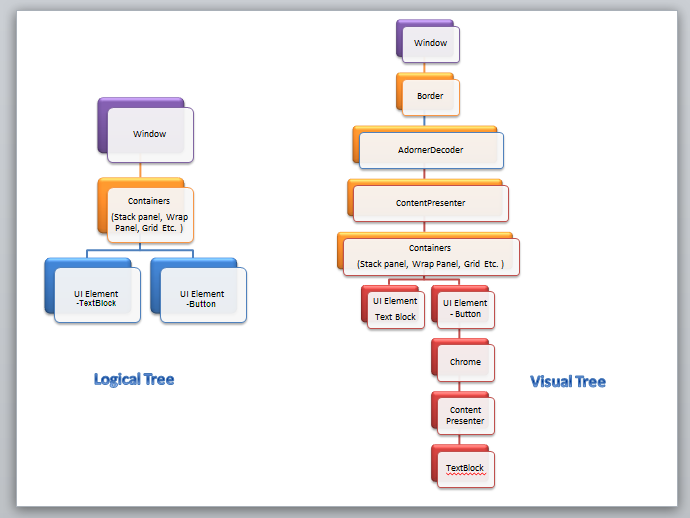
Every programming style contains some sort of LogicalTree which comprises the Overall Program. TheLogicalTree comprises the elements as they are listed in XAML. Thus they will only include the controls that you have declared in you XAML.
VisualTree on the other hand, comprises the parts that make up the individual controls. You do not generally need to deal with VisualTree directly, but you should know how each control is comprised of, so it would be easier to build custom templates using this.

I personally always like to see the VisualTree before using it. ExpressionBuilder is the one tool that allows you to generate the actual control.

Why RoutedEvent?

RoutedEvent is very new to the C# language, but for those who are coming from JavaScript/web tech, you would have found it in your browser. Actually there are two types of RoutedEvent. One which Bubbles through the Visual tree elements and another which Tunnels through the visual tree elements. There is also Direct RoutedEvent which does not Bubble or Tunnel.
When a Routed event which is registered, is invoked, it Bubbles / Tunnels through the Visual Elements and calls all the Registered RoutedEventHandlers associated within the Visual Tree one by one.
To discriminate between the two, WPF demarcated events with Preview*** as the events which are Tunneled and just *** for the events that Bubbles. For instance, IsPreviewMouseDown is the event that tunnels through the Visual Child elements while MouseDown Bubbles. Thus Mouse Down of the Outermost element is called first in case of IsPreviewMouseDown while Mouse Down for the innermost element will be called first in case of MouseDownevent.

Why DependencyObject is Used?

Every WPF control is derived from DependencyObject. DependencyObject is a class that supportsDependencyProperty, a property system that is newly built in WPF. Every object is derived fromDependencyObject and hence it can associate itself in various inbuilt features of WPF like EventTriggers,PropertyBindings, Animations, etc.
Every DependencyObject actually has an Observer or a List and declares 3 methods called ClearValue,SetValue and GetValue which are used to add/edit/remove those properties. Thus the DependencyPropertywill only create itself when you use SetValue to store something. Thus, it is resource saving as well. We will look atDependencyProperty in detail in other articles of the series.

What about Hardware Acceleration and Graphics Rendering Tiers in WPF?

Another important thing that you should know is how the WPF graphics is rendered. Actually WPF rendering automatically detects how much hardware acceleration is supported by the current system and adjusts itself accordingly. The graphics rendering detects the appropriate tier for rendering the output accordingly.
For hardware rendering, few things that have most of the impact are:
  1. Video RAM: This determines the size and number of buffers that the application might use to render its output.
  2. Pixel Shader: It is a graphics utility which calculates effects on per pixel basis.
  3. Vertex Shader: It is a graphics processing utility that performs mathematical calculations on Vertex of the output. They are used to add special effects to objects in 3D environment.
  4. MultiTexture Blending: This is a special function that allows you to apply two or more textures on the same object in 3D.
Now the rendering engine of WPF determines which tier is appropriate for the current application and applies the rendering tiers accordingly.
  1. TIER 0: No graphics hardware acceleration takes place, rather everything is rendered using Software. Any version of DirectX 9 or less is capable of rendering this output.
  2. TIER 1: Partial hardware and software rendering. You might use Directx9 or greater to use this tier.
  3. TIER 2: Full hardware acceleration. Directx9 or above can render this output.
To know more about it, refer here [^] .

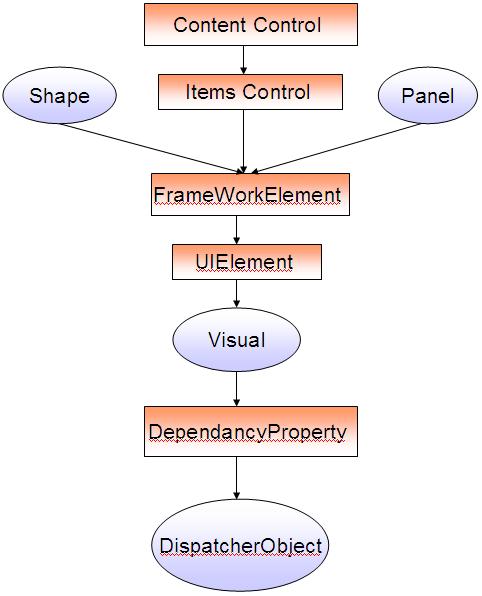
Object Hierarchy

There are quite a few objects in any WPF control. Let's discuss one by one as in the figure. (The abstract class is marked in ellipse while concrete class in Rectangles) :

  • DispatcherObject: Mother of all WPF controls which takes care of UI thread
  • DependencyObject: Builds the Observer for Dependency Properties
  • Visual: Links between managed libraries and milcore
  • UIElement: Adds supports for WPF features like layout, input, events, etc.
  • FrameworkElement: Implementation of UIElement
  • Shape: Base class of all the Basic Shapes
  • Control: The UI elements that interact with the user. They can be Templated to change look.
  • ContentControl: Baseclass of all controls that have single content
  • ItemsControl: Baseclass for all controls that show a collection
  • Panel: Baseclass of all panels which show one or more controls within it

Building Your First WPF Application

Now the time has come to build your first WPF Application. To do this, let's open Visual Studio 2008 / 2010. For this example, I used Visual Studio 2008. Create a new Project. You will see a new window. The XAML will look like:
<Window x:Class="FirstWindowsApplication.Window1"
  xmlns="http://schemas.microsoft.com/winfx/2006/xaml/presentation"
  xmlns:x="http://schemas.microsoft.com/winfx/2006/xaml"
  x:Name="Window1"
  Title="Window1" Height="300" Width="300">
   <Grid>
   </Grid>
</Window>
Here the blank window is produced. Height / Width represents the Size of the Window. Title determines the text which is displayed in the TitleBar of the window. Every control in XAML could be named with x:Name attribute. This will be used to reference the Window object in your XAML. x:Class attribute represents the class which should be associated with current Window. As I already told you, that XAML is not self sufficient, so to define logic you need a class in C# or VB.NET.
Grid is the primary layout for WPF application. Grid can take multiple Child elements. So let us put some controls into the grid.
<Grid>
        <Grid.RowDefinitions>
            <RowDefinition Height="Auto" />
        </Grid.RowDefinitions>
        <Grid.ColumnDefinitions>
            <ColumnDefinition MinWidth="50" />
            <ColumnDefinition Width="Auto" />
            <ColumnDefinition Width="*" />
        </Grid.ColumnDefinitions>
        <TextBlock Text="Enter Name :" Grid.Row="0" Grid.Column="0" />
        <TextBox x:Name="txtName" Grid.Row="0" Grid.Column="1" MinWidth="50"/>
        <Button Content="Click Me" Grid.Row="0" Grid.Column="2" Click="Button_Click"/>
    </Grid>
You can see that I have defined RowDefination and ColumnDefination. This allows you to divide the grid into cells so that you can place your control exactly where you want to. For each RowDefination andColumnDefination, you can use Height and Width of it. You can see I have used 50, Auto, and * as width.Auto represents the size which we would define for the control during control definition. * indicates the rest of the space which it can take. Thus, you can see the button is spread the rest of the area of the column it finds.
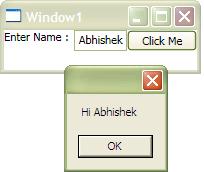
Now in the Behind, I put a Messagebox to show the content of TextBox.
private void Button_Click(object sender, RoutedEventArgs e)
 {
     MessageBox.Show(string.Format("Hi {0}", this.txtName.Text));
 }
Therefore you can see your name will be prompted to you. Isn't it funny. :)
If you have noticed the XAML minutely, you might wonder how I can define the property of Grid within other controls. Like I defined Grid.Row=0 in each of the control. This is actually possible due to the use of Dependency properties. It's a new feature introduced with WPF. We will discuss in detail later on.

Conclusion

This is the first part of the series of WPF. This comprises the initial discussion of the WPF application. In the next articles, I would delve more into other aspects of WPF programs and how you can work with WPF controls and guide you to build a solution. Hope you like reading this post.